

How to Use HosTalky's AI Scribe: A Feature Walkthrough
Chart less. Care more. Every note complete, in real time. That's the whole idea behind HosTalky AI Scribe: you talk to your patient, and it writes the note.
This feature walkthrough covers exactly how HosTalky AI Scribe works, step by step, using the real app, not a marketing overview.
What Is AI Scribe?
AI Scribe is a mobile-first, voice-powered documentation assistant built into HosTalky. It listens while you talk, either to a patient, during a consultation, or through a quick verbal summary, and turns that conversation into a structured clinical note automatically.
It's built to work where care actually happens: ward rounds, home visits, and busy clinics, not just at a desk after the fact.
The Problem It Solves
Documentation eats into time that should go to patients. We covered the real scale of this in Documentation Burden: The Hidden Driver of Clinician Burnout, 79% of nurses report losing time to unproductive charting. AI Scribe addresses this directly: instead of writing the note after the conversation ends, from memory, the note gets built from what was actually said, while it's still being said.
Step-by-Step: How AI Scribe Works
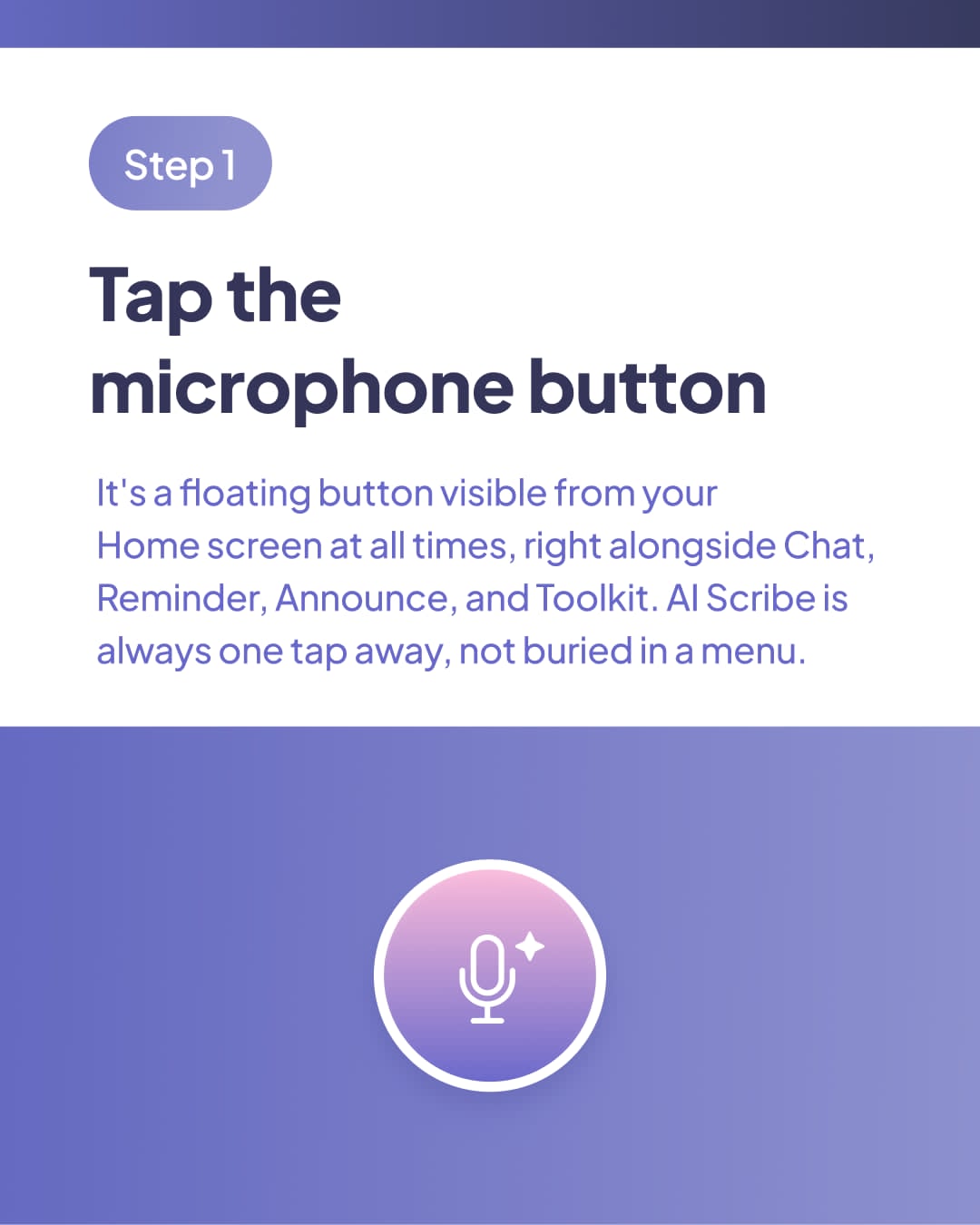
It's a floating button visible from your Home screen at all times, right alongside Chat, Reminder, Announce, and Toolkit. AI Scribe is always one tap away, not buried in a menu.
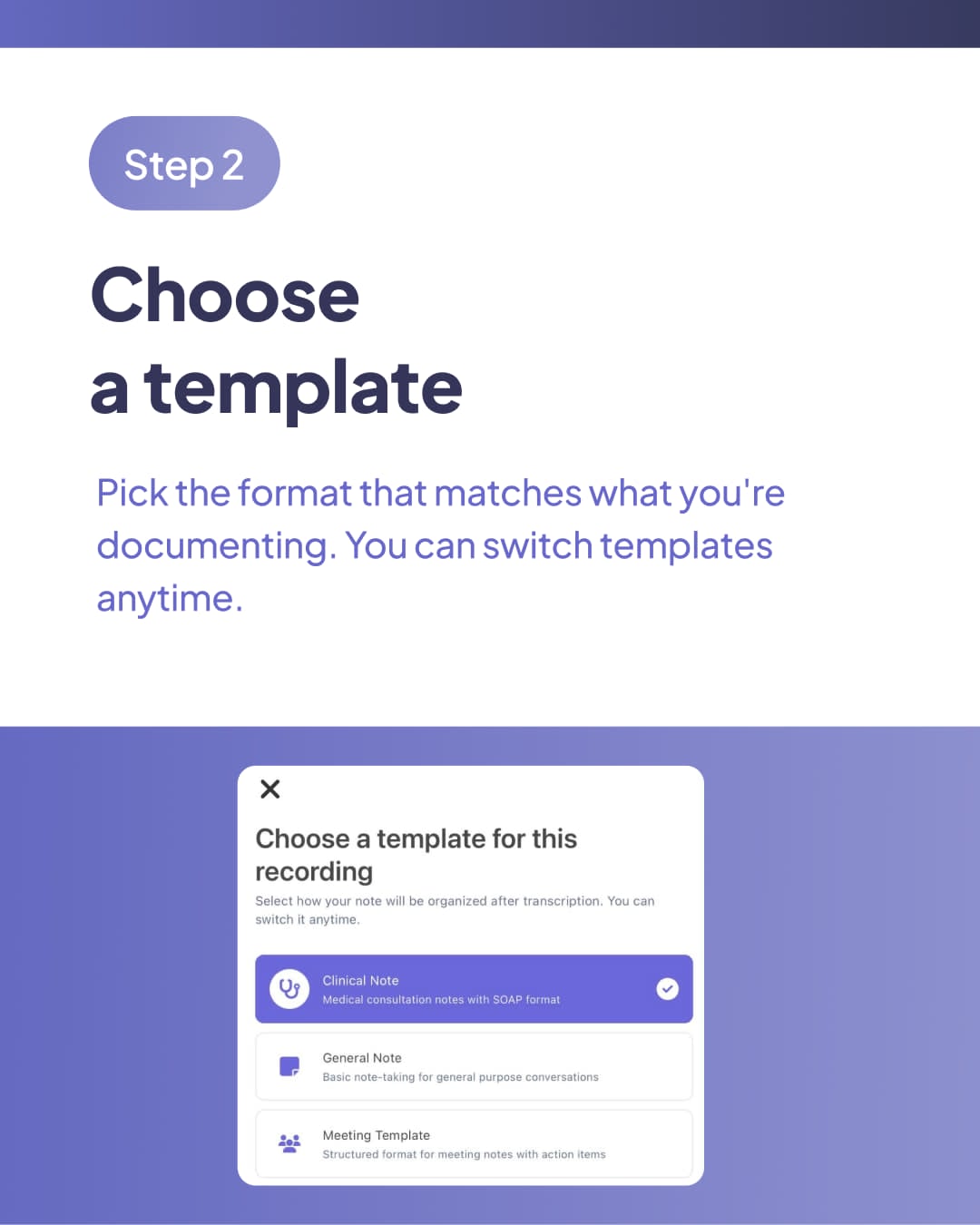
Pick the format that matches what you're documenting. You can switch templates anytime.
| Template | Best For |
|---|---|
| Clinical Note | Medical consultations, SOAP format |
| General Note | Basic, general-purpose note-taking |
| Meeting Template | Team meetings, with action items |
| Summary Note | Quick overviews |
| Initial Consultation | First-visit history and intake |
| Follow-Up | Progress checks, treatment adjustments |
| Results Review | Lab, imaging, or test result discussions |
| Treatment Session | Ongoing treatment documentation |
Worth knowing: AI Scribe isn't only for patient notes. Meeting Template and Summary Note extend it to team meetings and general documentation too.
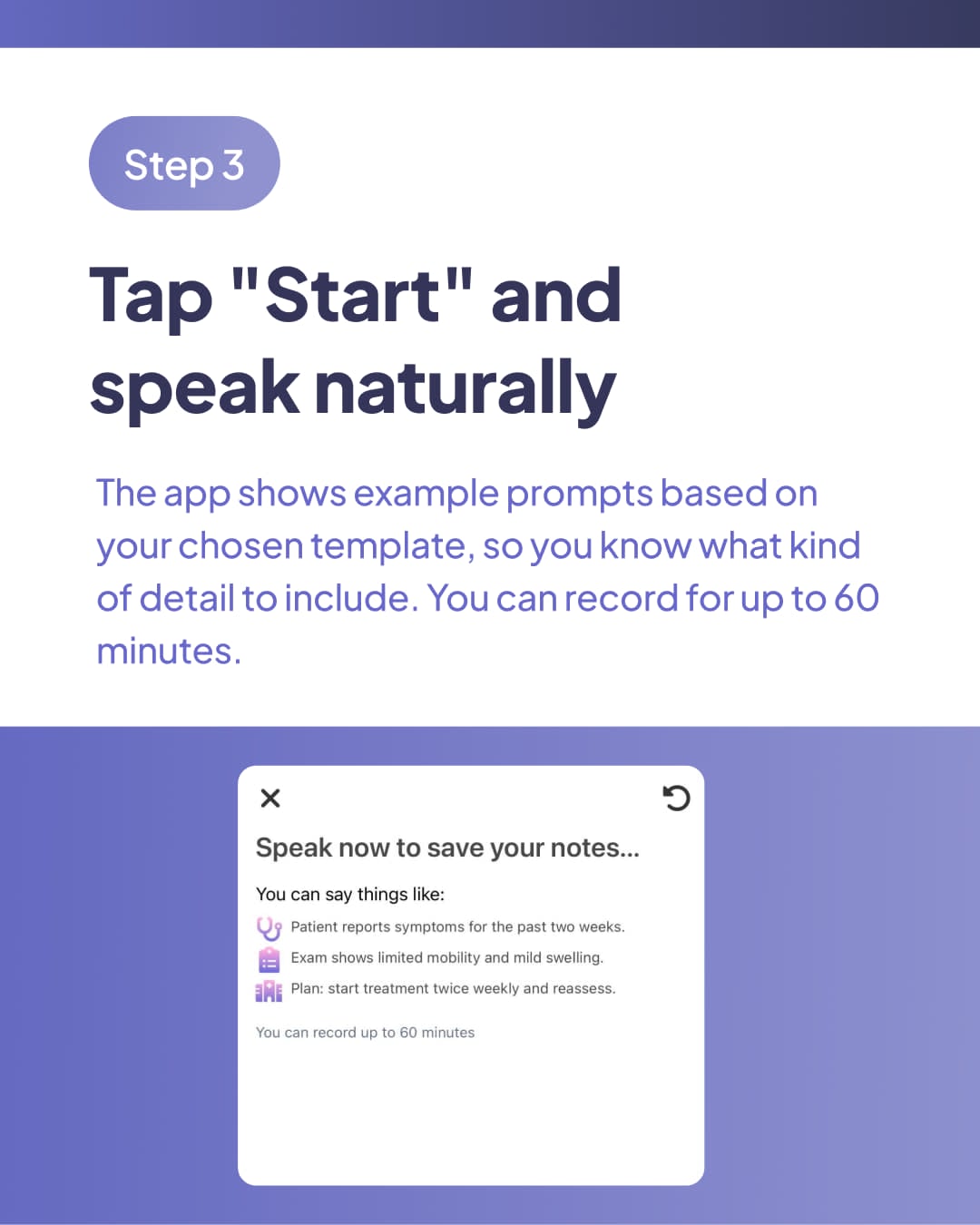
The app shows example prompts based on your chosen template, so you know what kind of detail to include. You can record for up to 60 minutes.
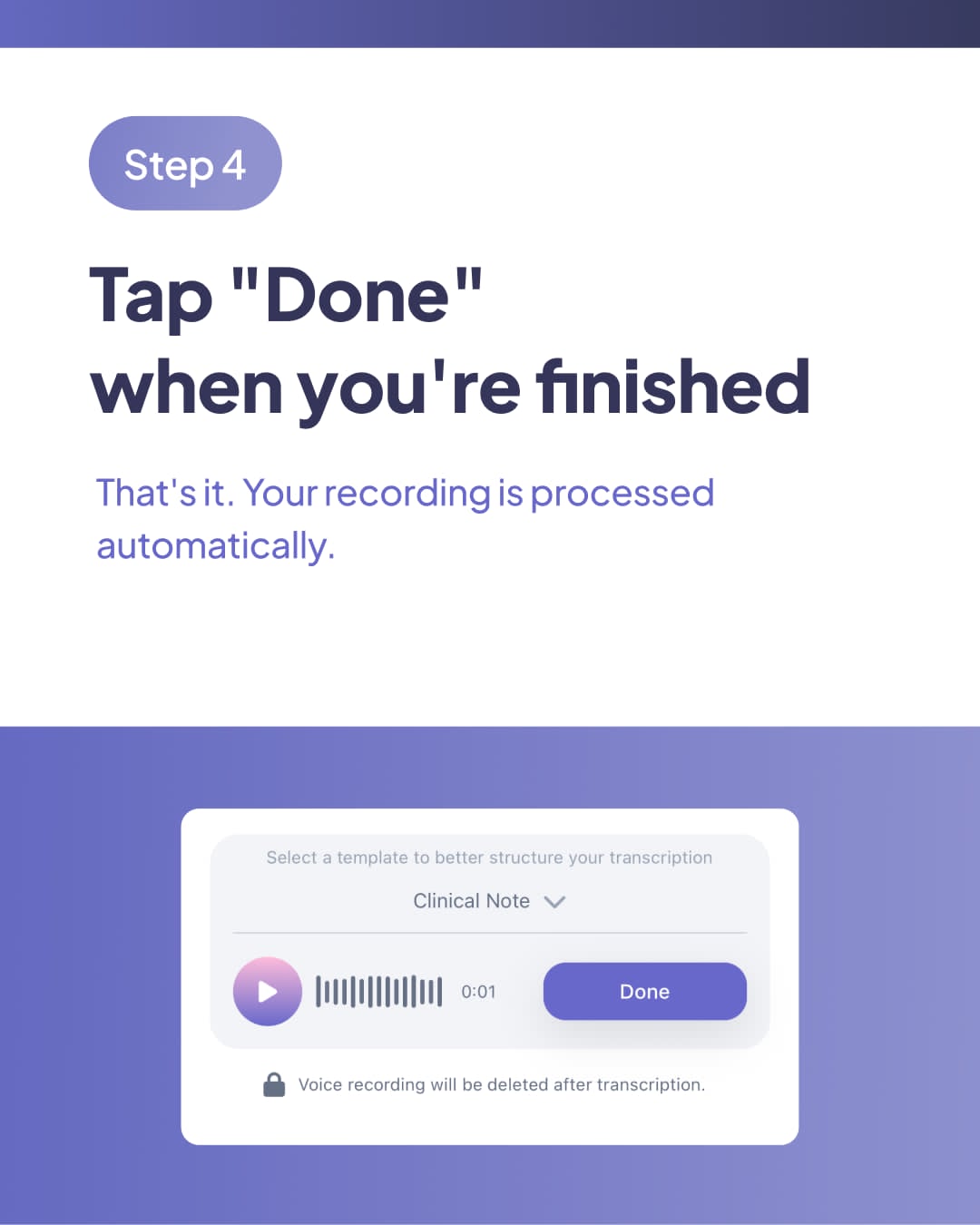
That's it. Your recording is processed automatically.
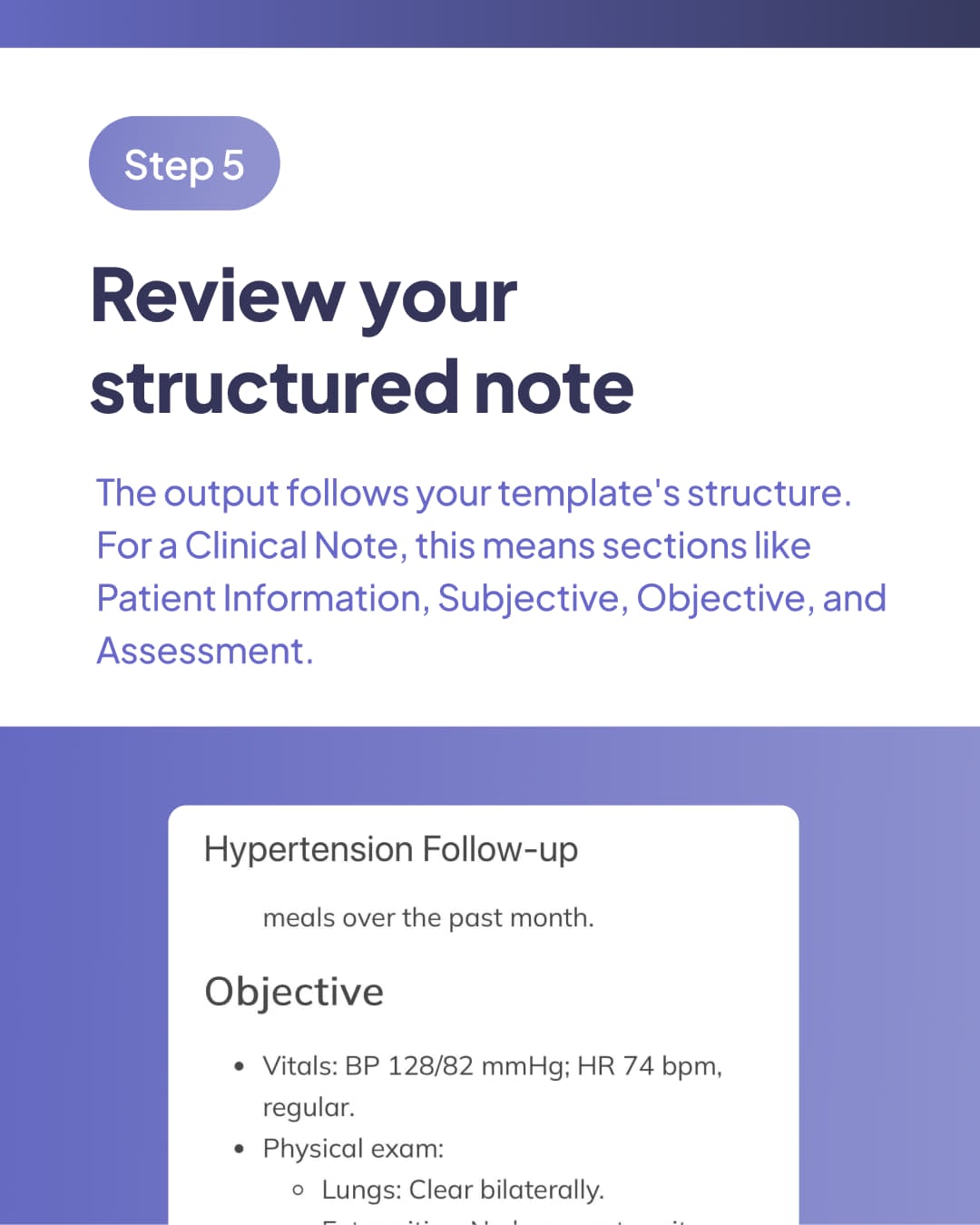
The output follows your template's structure. For a Clinical Note, this means sections like Patient Information, Subjective, Objective, and Assessment.
Worth noting directly: if something wasn't covered in the conversation, the note labels that section "Not mentioned" instead of inventing content to fill the gap. The note reflects exactly what was said, not a guess at what might have been meant.
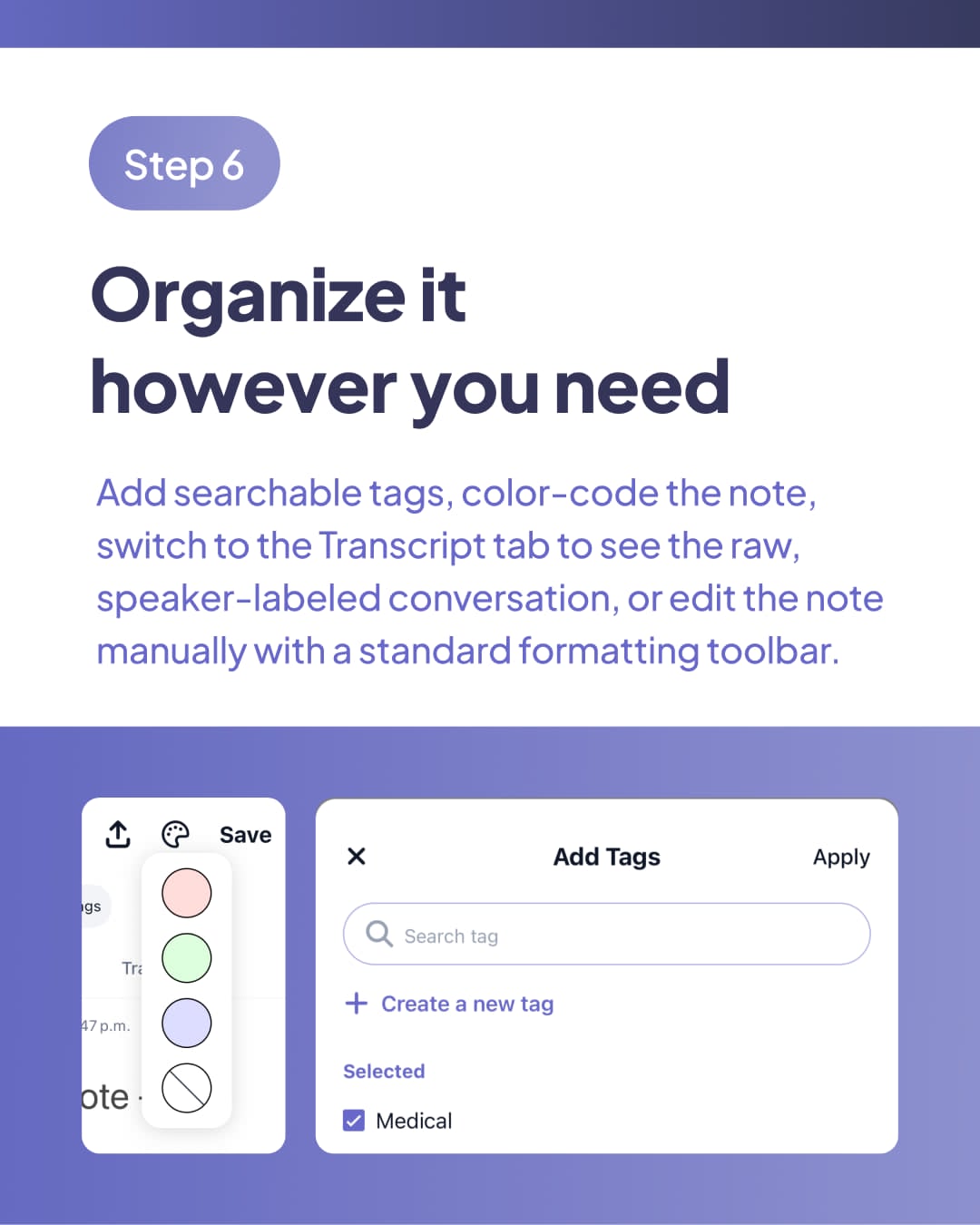
Add searchable tags, color-code the note, switch to the Transcript tab to see the raw, speaker-labeled conversation, or edit the note manually with a standard formatting toolbar (bold, italic, underline, lists).
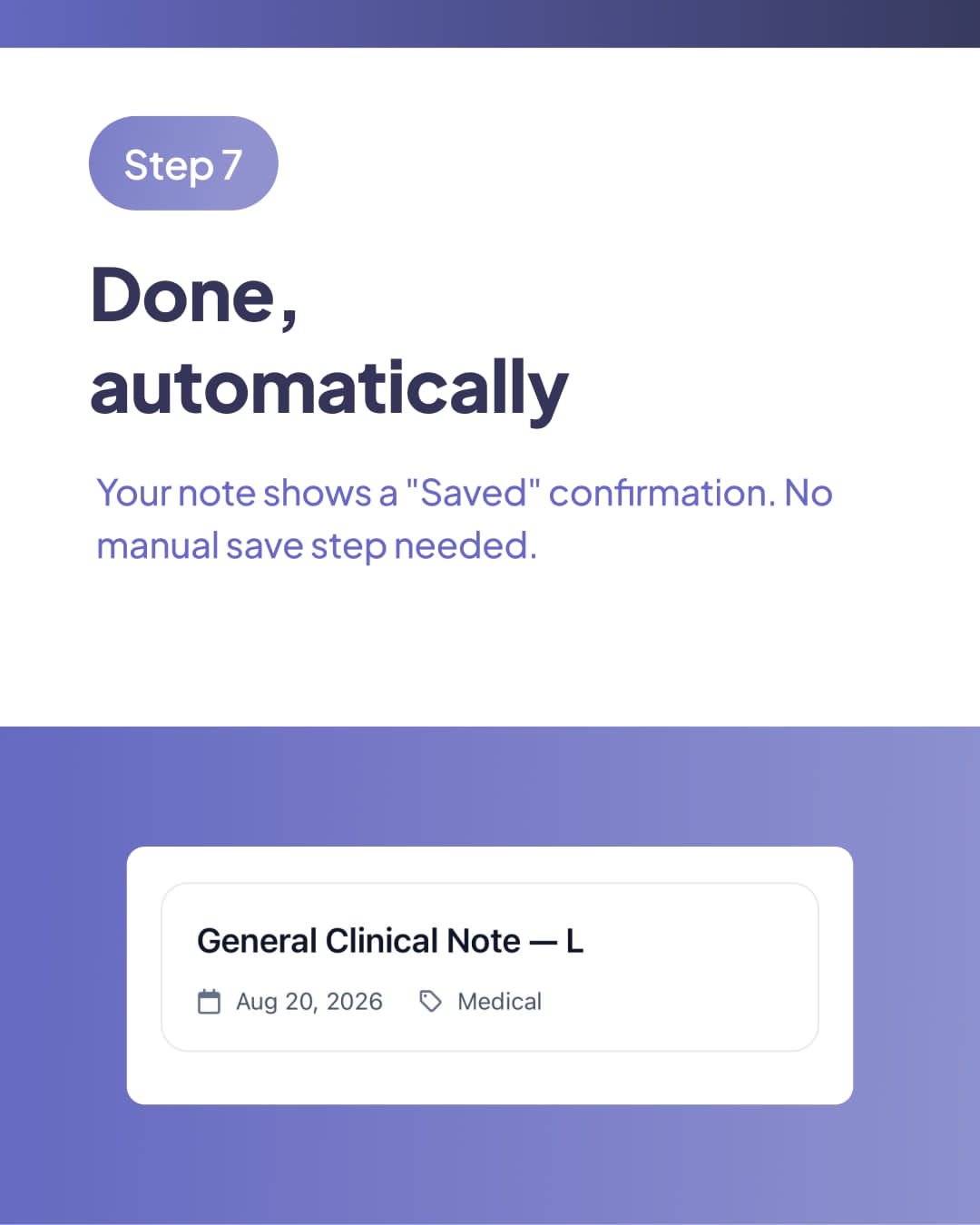
Your note shows a "Saved" confirmation. No manual save step needed.
What the Note Actually Looks Like
Here's a real example, start to finish, using an actual recording and its actual output, a routine hypertension follow-up visit.
What Was Said
"This is a follow-up visit for Maria Santos, 52 years old. She's here for hypertension management. She reports feeling well overall, no headaches, no chest pain, no shortness of breath. She's been taking her lisinopril daily as prescribed and says she's been more consistent with low-sodium meals over the past month. On exam, blood pressure today is 128 over 82, heart rate 74 and regular. Lungs clear bilaterally. No lower extremity edema. Assessment: hypertension, well controlled on current regimen. Plan: continue lisinopril 10 milligrams daily. Recheck blood pressure in 3 months. Advised to continue the low-sodium diet and follow up sooner if she notices any headaches or dizziness."
What AI Scribe Produced (Clinical Note, SOAP Format)
| Section | Content |
|---|---|
| Title | Hypertension Follow-up |
| Patient Information | Name: Maria Santos Age: 52 years |
| Subjective | Chief concern: Hypertension management Review of systems: Denies headaches, chest pain, shortness of breath Medications/adherence: Taking lisinopril daily as prescribed Diet: More consistent with low-sodium meals over the past month |
| Objective | Vitals: BP 128/82 mmHg; HR 74 bpm, regular Physical exam: Lungs clear bilaterally; no lower extremity edema |
| Assessment | Hypertension: well controlled on current regimen |
| Plan | Continue lisinopril 10 mg daily. Continue low-sodium diet. Recheck blood pressure in 3 months. Return sooner if headache or dizziness occurs. |
Every section the recording actually covered came through fully structured, correct medication name and dose, exact vitals, a complete plan with follow-up timing. This is what the note looks like when nothing is missing.
AI Scribe doesn't work alone. Medigenie helps organize routine tasks and case discussions around what you've recorded, and Meditionary provides medical terminology and guideline lookup, right in the app.
Every Note Complete, In Real Time
Talk to your patient. AI Scribe writes the note.
Try It FreeWhat Happens to Your Recording
This is stated directly in the app, not just in a privacy policy. During recording, you'll see: "Voice recording will be deleted after transcription."
The full picture:
- Audio is never stored, only the transcription and finished note are saved
- End-to-end encrypted
- Your data never trains third-party AI models
The Bottom Line
Chart less. Care more. AI Scribe's job is simple: you talk, it writes a structured, complete note, and it tells you honestly when something wasn't covered rather than filling in the blanks. 8 templates mean it fits more than just patient visits, team meetings and general notes work too.
FAQs
How do I start a recording in HosTalky's AI Scribe?
Tap the purple microphone button, visible from the Home screen at all times alongside Chat, Reminder, Announce, and Toolkit. Choose a template, tap Start, and speak naturally. You can record for up to 60 minutes.
What templates does AI Scribe support?
AI Scribe supports 8 templates: Clinical Note (SOAP format), General Note, Meeting Template, Summary Note, Initial Consultation, Follow-Up, Results Review, and Treatment Session. This covers both patient documentation and team meeting notes.
What happens if I don't mention something during the recording?
AI Scribe labels that section "Not mentioned" rather than inventing content to fill the gap. This is a deliberate accuracy choice, the note reflects exactly what was said, not an assumption about what might have been meant.
Is my voice recording stored?
No. The app displays this directly during recording: "Voice recording will be deleted after transcription." Only the transcription and finished note are saved. Everything is end-to-end encrypted, and your data is never used to train third-party AI models.